Tableaf User guide
Write chord charts, tab and rhythm, share them, and turn pages on stage. Organized so you can start from what you want to do.
Switch "Your device" at the top to see only the steps for that device.
Get started in 3 minutes#
Open it in your browser, type some chords, and view them in Performance mode. It takes about three minutes.
- Open app.tableaf.appJust open it in the browser you already use. There is nothing to install.
- Press "+ New song"Press + New song on the home screen and an empty chart opens.
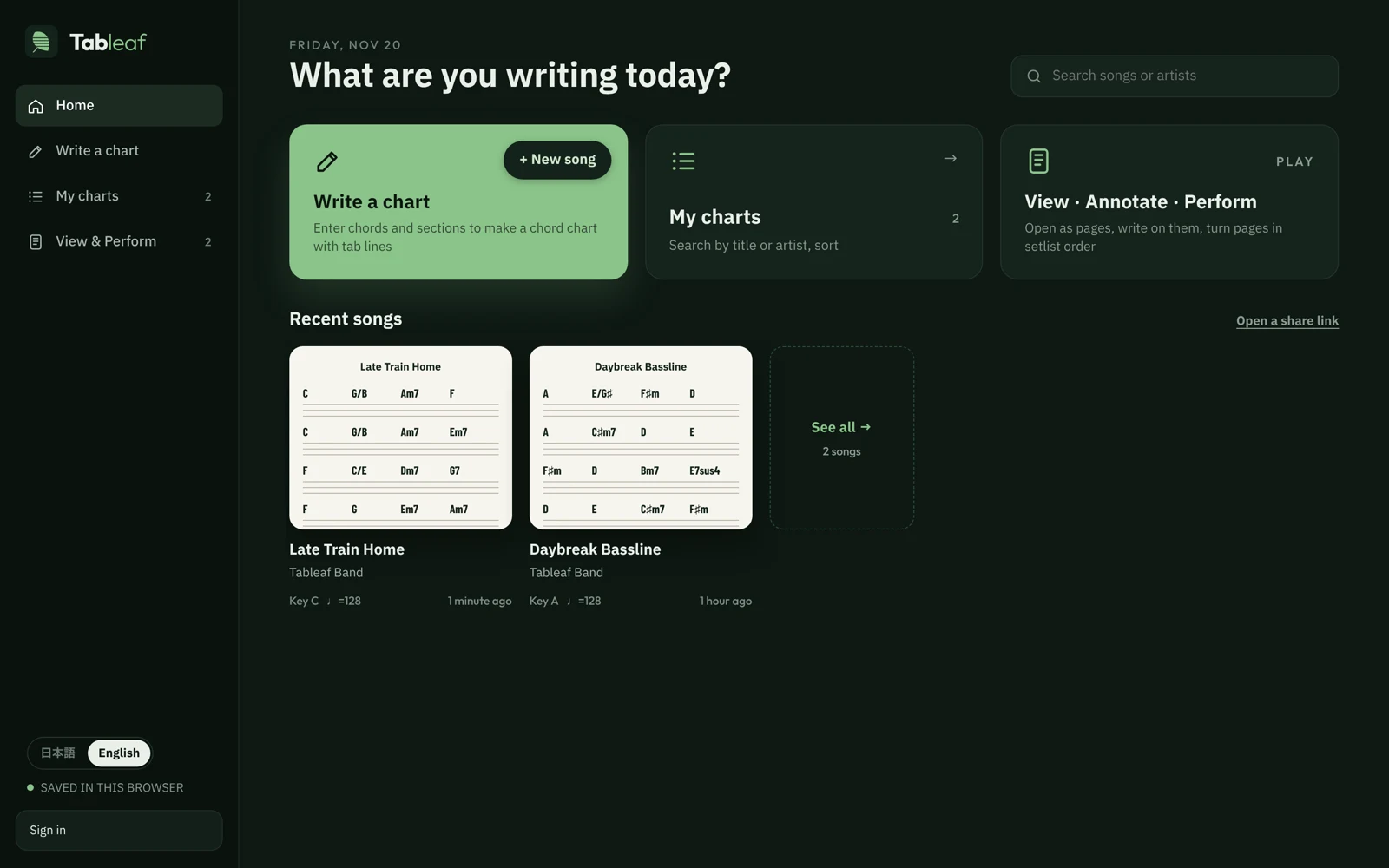
Home. In "My charts" you can search your songs by title or artist and sort them. - Type chordsOn a Mac, type A m on the keyboard. On iPad or iPhone, tap A → m on the keypad. Each chord moves you to the next bar.
- Press "▶ Perform" to view itTap the right side of the screen to turn to the next page.
More
- To try it without signing up, use the demo on the top page (nothing is saved).
- When you sign in, your songs are saved to the cloud and you get the same charts on every device. Without signing in, they are saved only on that device (see Account and data).
- On iPhone and iPad, add it to your Home Screen or sign in before you start writing.
- You can write and turn pages on a phone alone. For detailed work, the larger screen of a computer or iPad is easier.
- All features are free for up to 5 songs, with no time limit. For prices, see the pricing section on the top page.
Install it as an app#
Put it on your Home Screen or Dock and it opens in its own window and works without a connection.
Chrome or Edge: click the install icon at the right end of the address bar. Safari (Mac): File → Add to Dock.
Open it in Safari → Share button (□↑) → Add to Home Screen.
Open it in Safari → Share button (□↑) → Add to Home Screen.
- Open it once while you have a connectionSign in at this point too. After that it starts even without a connection.
- Check "Ready offline" before the showIf the setlist shows ✓ Ready offline, every song will open.
- It saves automatically when you're back onlineChanges you made while offline are sent to the cloud automatically.
More
- In Edge you can also install from the menu (…) → Apps, and in Chrome from the menu (︙) → Cast, save, and share. On Android, use the Chrome menu → Install app.
- Updates are automatic. When you see "A new version is available", press "Update" (your charts are not deleted).
- On iPhone and iPad, Safari and the Home Screen app save things in separate places. Sign in and you'll see the same songs in both.
- If you edit the same song on two devices while offline, only one version may be kept. Before a show, make your fixes on one device.
Enter chords#
Type straight onto the chart. Each chord moves you on to the next bar.
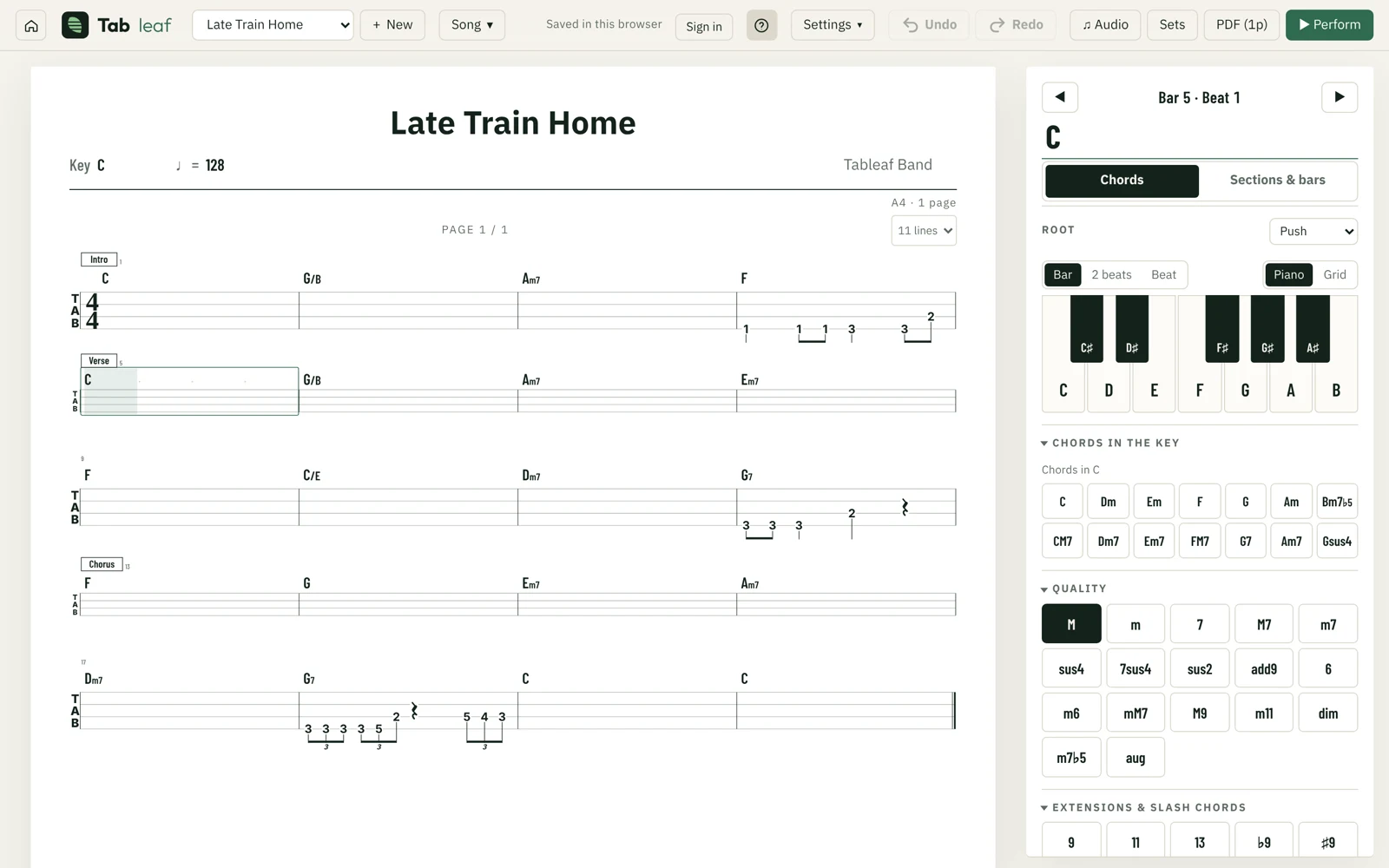
- Click a barThis sets where you're entering.
- Type the root + qualityF # m 7 gives F♯m7. Use - for ♭ and / for a slash chord.
- Type the next rootIt moves to the next bar automatically.
- Tap a barThis sets where you're entering.
- Keypad → qualityPressing a quality moves you to the next bar automatically. "Chords in the key" enter in one tap.
- Add to it right afterRight after it moves on, press an extension or slash chord and it's added to the chord you just entered.
- Tap a barThe input panel opens at the bottom.
- Keypad → qualityPressing a quality moves you to the next bar automatically.
- Add to it right afterRight after it moves on, press an extension or slash chord and it's added to the chord you just entered.
More
Two or more chords in a bar#
Choose a beat in the bar first, then enter the chord. On a Mac, Space moves one beat and , adds another chord to the same bar.
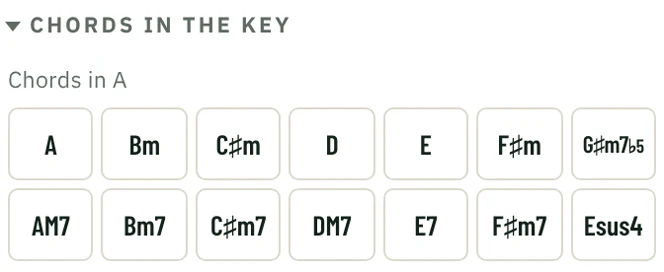
Chords in the key#
The chords used in the song's key are lined up, and one press enters both the root and the quality.
What you can enter#
| Item | Options |
|---|---|
| Quality | maj m 7 maj7 m7 sus4 7sus4 sus2 add9 6 m6 m(maj7) maj9 m11 dim m7♭5 aug ("maj" is a plain major chord) |
| Extensions | 9 11 13 ♭9 ♯9 ♯11 ♭13 (as many as you like) |
| Other | Slash chords, N.C., push (8th or 16th) |
Move and delete#
Drag a chord to wherever you want it (on iPad and iPhone, tap to select it, then press and hold briefly and drag). On a Mac, option+drag copies it. To delete, press Delete or "Delete".
Typing chords on a keyboard#
| Chord | Keys to press |
|---|---|
| B♭maj7 | B - ⇧+M 7 |
| Am/G | A m / G |
| G7(♭9) | G 7 → extension "♭9" |
If you don't want it to move on automatically (iPad and iPhone), open "Settings ▾" (chart settings) → "Display & export" and turn "Auto-advance" off.
Other keys are listed under "Keyboard shortcuts".
Hits, rhythm and tab#
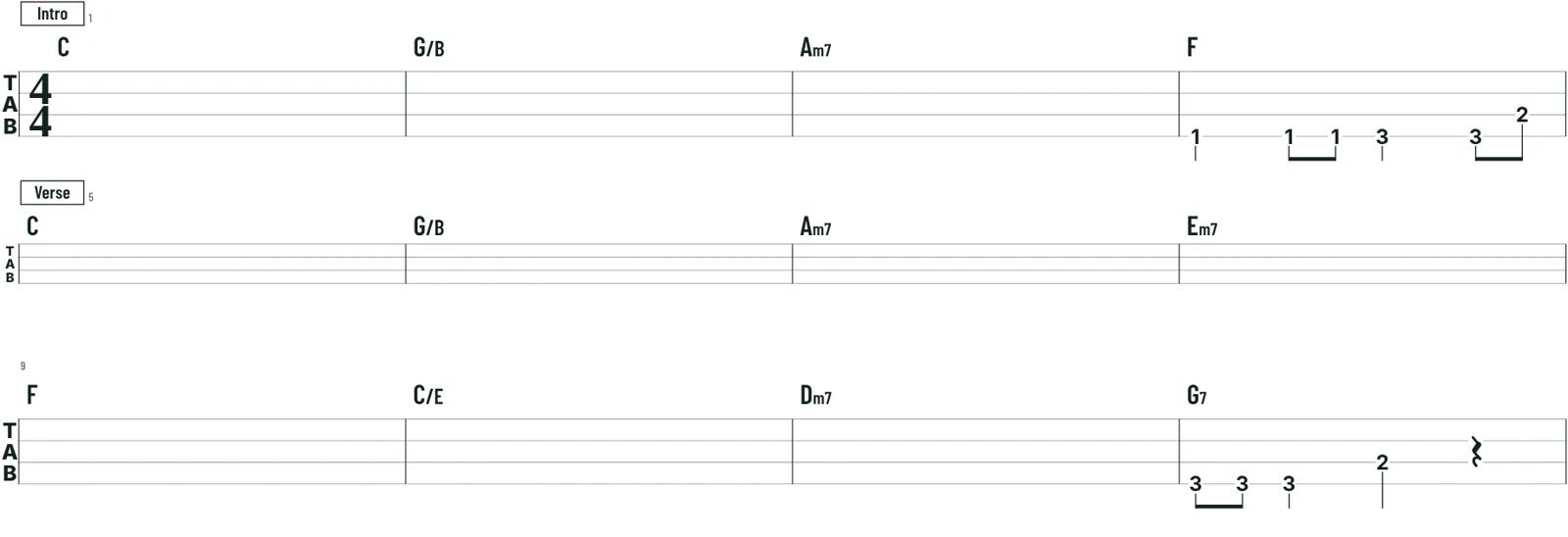
Drag across the grid to write the hits, then add fret numbers. Chords, hits and tab end up on one chart.
- Double-click (double-tap) a barThe rhythm editor opens.
- Press a cell to add a noteDrag to the right for a longer note. For a rest, right-click (long-press on iPad and iPhone).
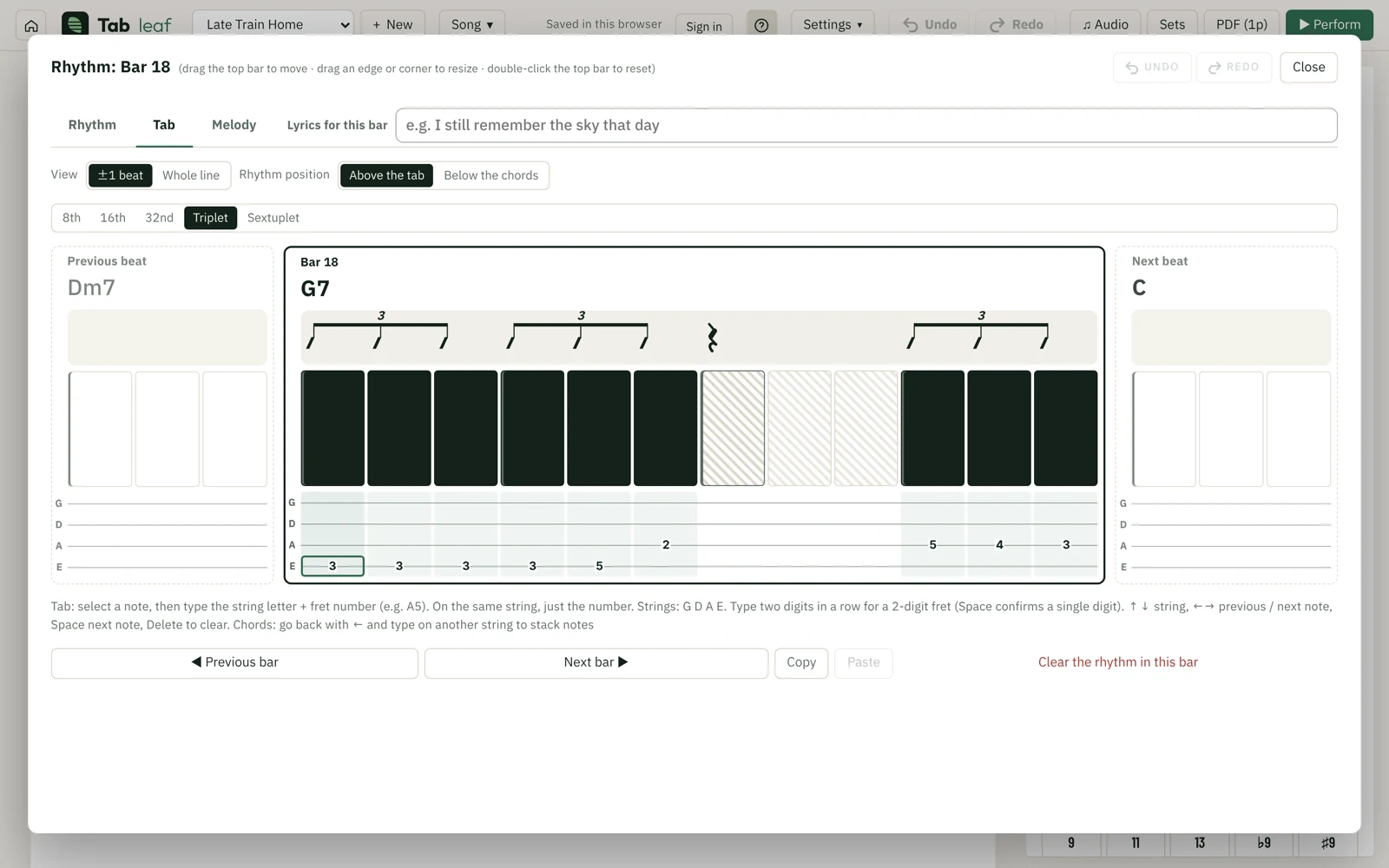
- Enter numbers on the "Tab" tabOn a Mac, type the string and the number, like A5. On iPad and iPhone, tap a line and press a number.
More
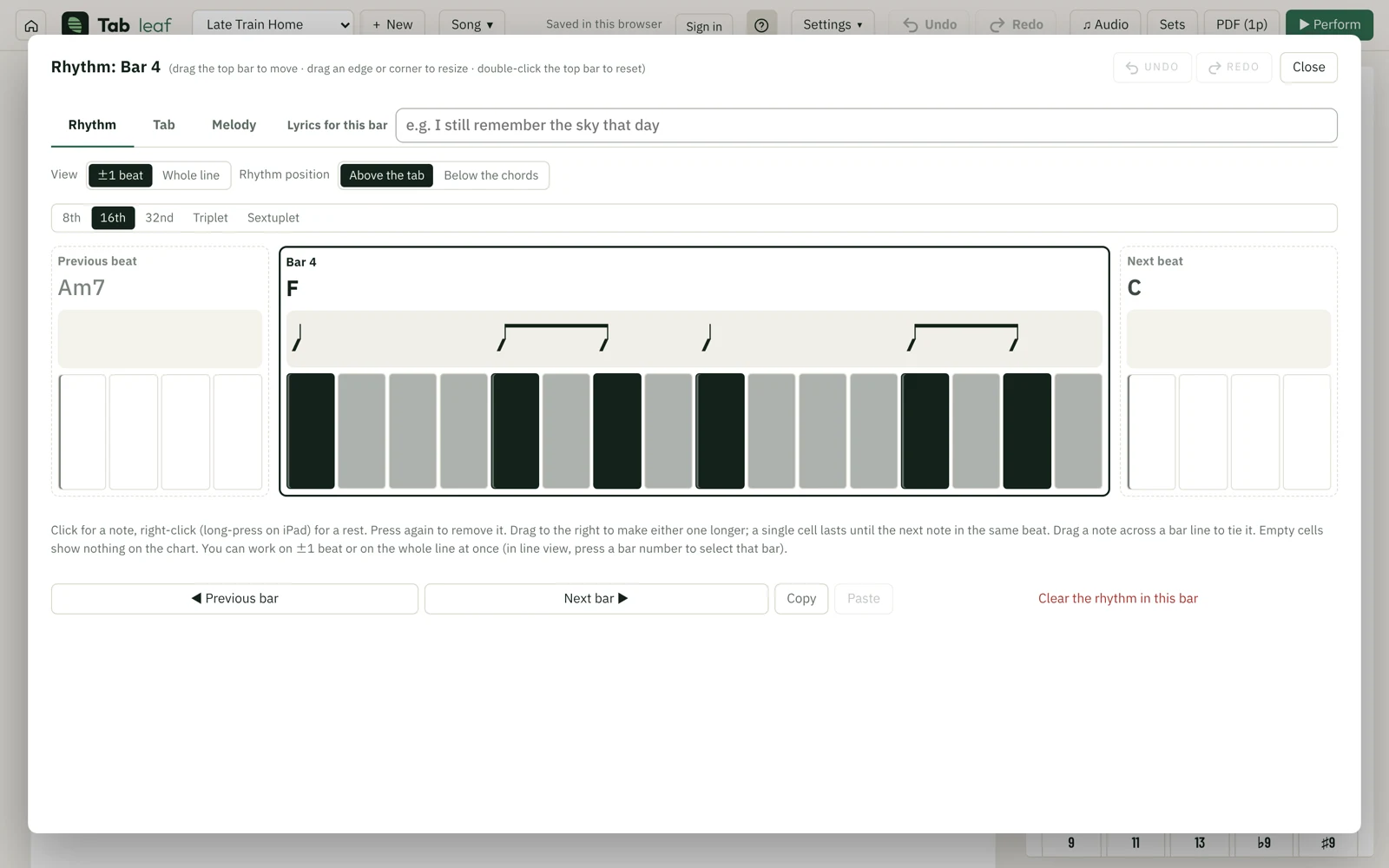
- Drag across a bar line and the notes are tied.
- The grid can be 16th, 32nd, triplet or sextuplet.
- ↶ Undo ↷ Redo (⌘Z) undo what you entered in the rhythm editor.
- Copy Paste (⌘C / ⌘V) copy only the rhythm and tab numbers to another bar. The chords stay as they are.
- To remove only the rhythm, use "Clear the rhythm in this bar".
- The numbers show when the chart is set to the same number of lines they were entered on (for example, TAB 4). For hits only, you can leave the numbers out.
- Not yet supported: technique marks such as hammer-ons, pull-offs and slides can't be entered in the tab. If you need them, write them by hand in Performance mode.
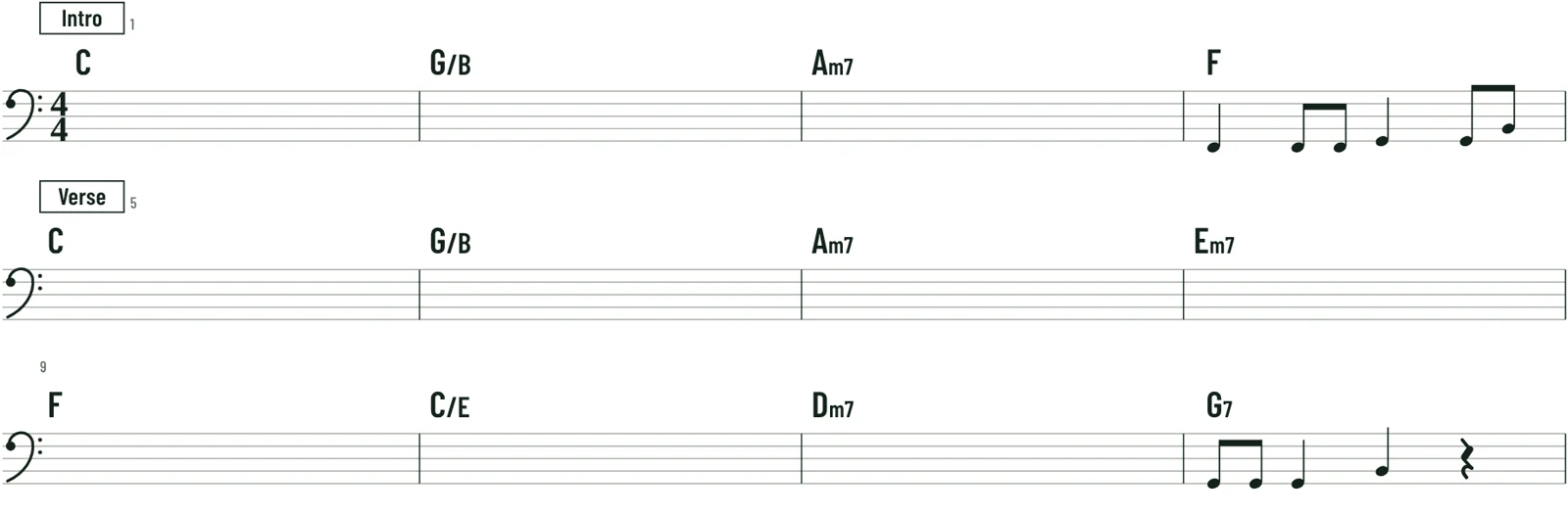
View it on a staff (bass clef)
Open "Settings ▾ → Layout" and set the notation to "Staff". The tab numbers are shown as notes at the right pitch. Bass is written in bass clef, an octave higher than it sounds, as usual. Notes with rhythm but no fret number are written as slashes.
Chord names from tab (ver.1.10)#
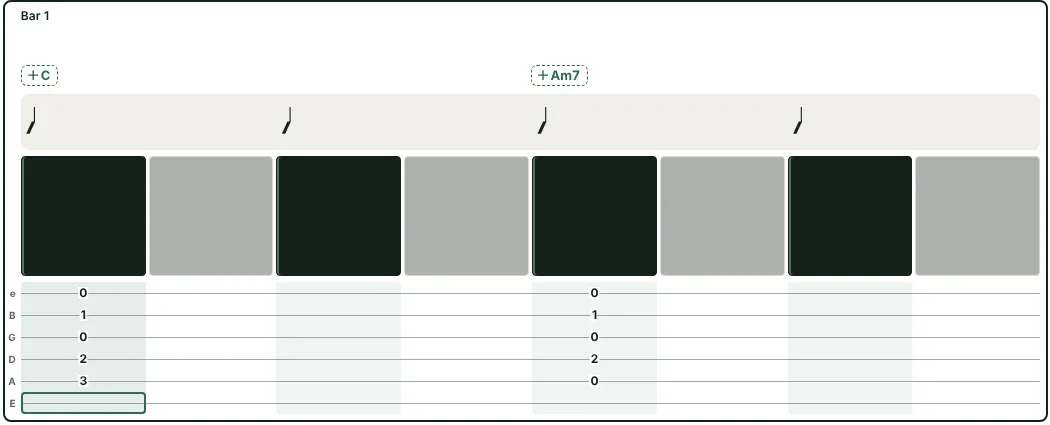
Enter the shape you play in tab, and Tableaf suggests the chord name. No theory needed to write a chord chart for your band. Included in the free plan.
- Double-click (double-tap) a bar and open the "Tab" tab
- Enter the shapePut notes on two or more strings at the same beat.
- Press the dotted "+chord" above itThe chord is added to that beat.
- Not the one you meant?Press the other suggestion in the notice that appears, or use ↶ Undo.
Fill in a whole song, and shapes it doesn't handle well
For a song written only in tab, select bars and choose "Fill in chords from tab" in the bar menu (right-click, or long-press on iPad and iPhone). Chords go into every empty beat at once, and the new ones light up for a few seconds. One ↶ Undo removes them all. Beats that already have a chord are left as they are.
- When the lowest note isn't the root, you get a slash chord (C/E, Am/G). Root and fifth only gives a power chord (E5). Extensions are shown too (E7(9), B7(♭13), DM7/A, Em11).
- Tuning and capo are taken into account. With half step down or a capo, the name is the shape you hold; with Drop D, Open G and so on, it is the pitch that sounds.
- Not handled well: 6/9 and dim7 may get a close alternative name. Shapes without the root get a different name. Arpeggios (one note at a time) are not suggested.
Lead sheets and lyrics NEW in 1.1#
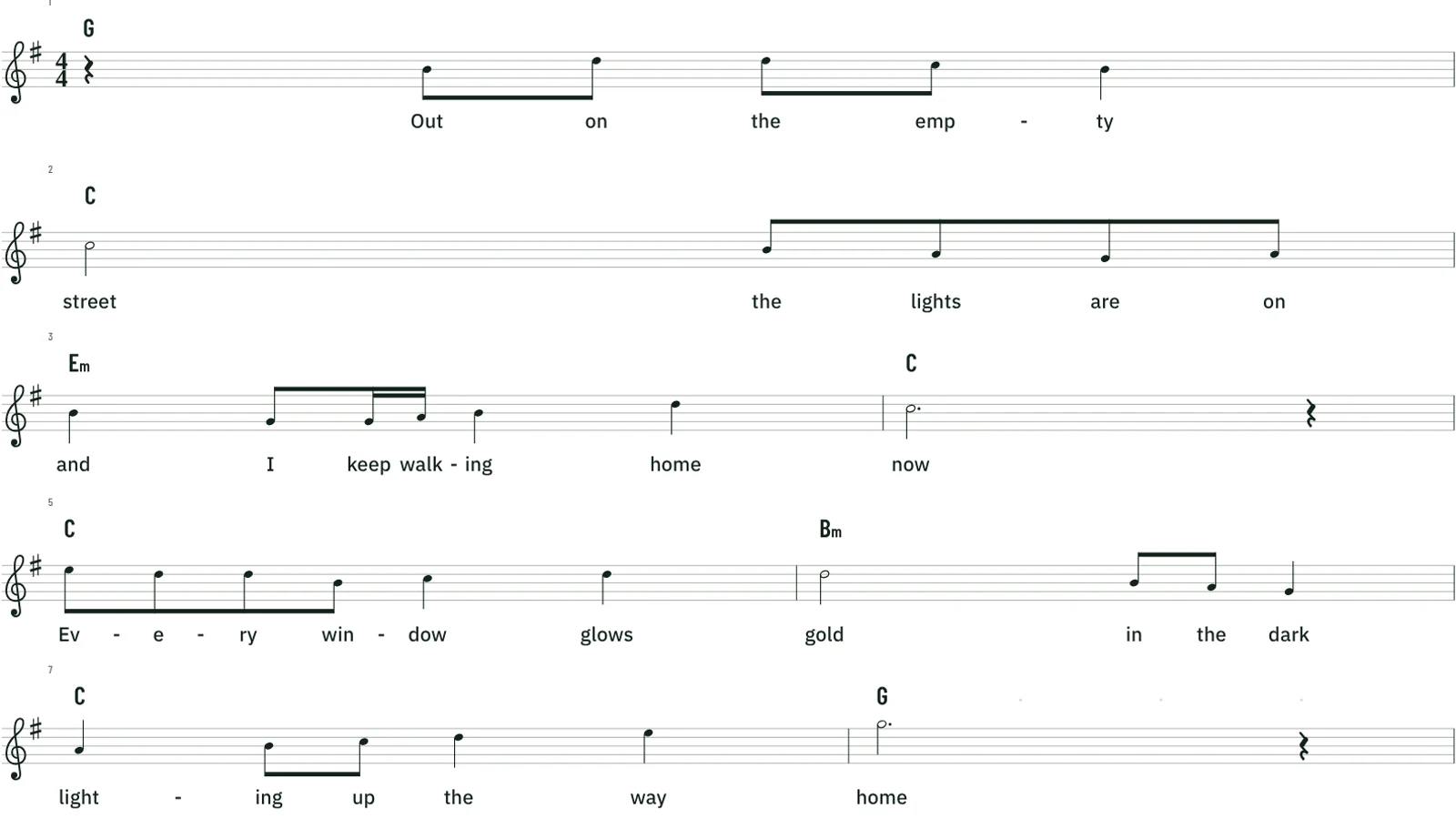
Write chords, melody and lyrics together on one treble-clef staff. Handy for sharing a demo vocal line or a chord chart with lyrics.
- Double-click (double-tap) a bar and open the "Melody" tabIt uses the rhythm you entered on the Rhythm and Tab tabs.
- In "② Pitch", click (tap) the staffPress the staff above a note to set its pitch (on a phone, it moves to the next note). Notes follow the key signature.
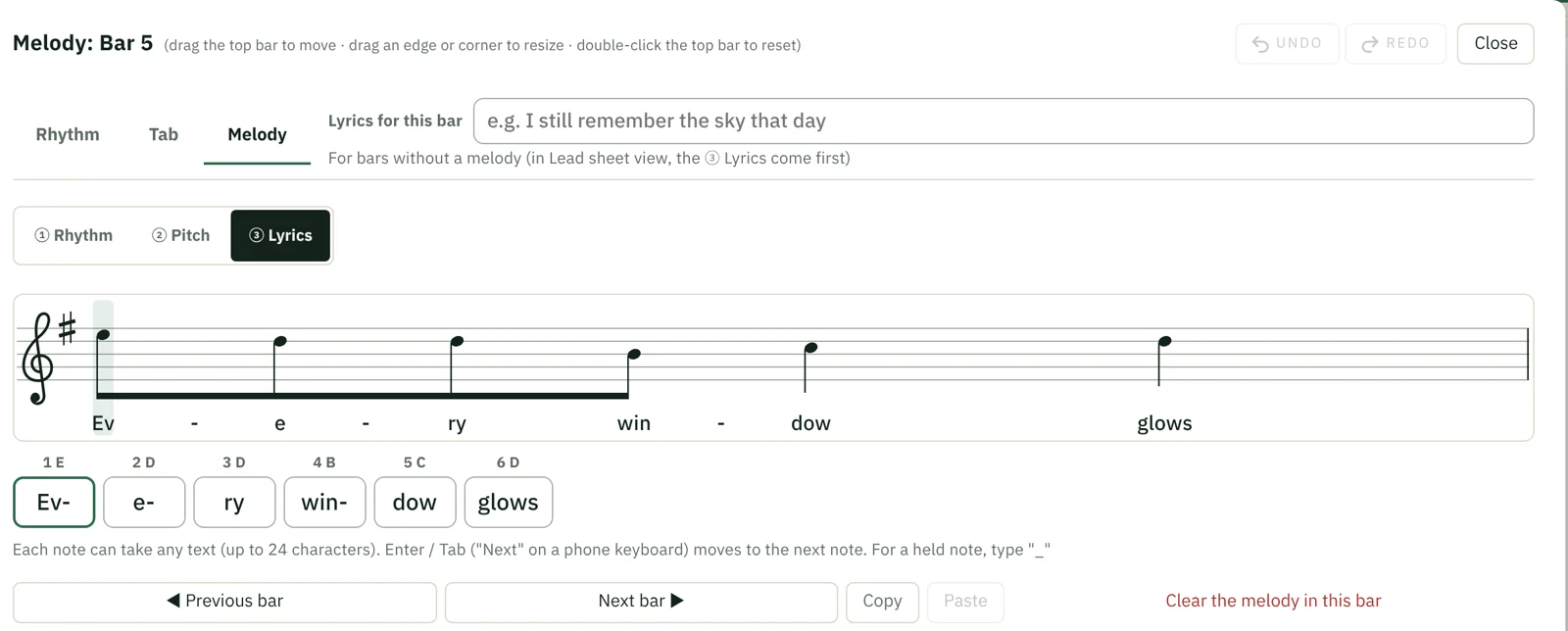
- In "③ Lyrics", enter the text note by notePress Enter / Tab ("Next" on a phone) to go to the next note. For a held note, type "_".
- Press "Show the melody on the chart"The notation changes to "Lead sheet" and the melody appears on the chart (you can also switch it with the notation setting in "Settings ▾ → Layout").
More
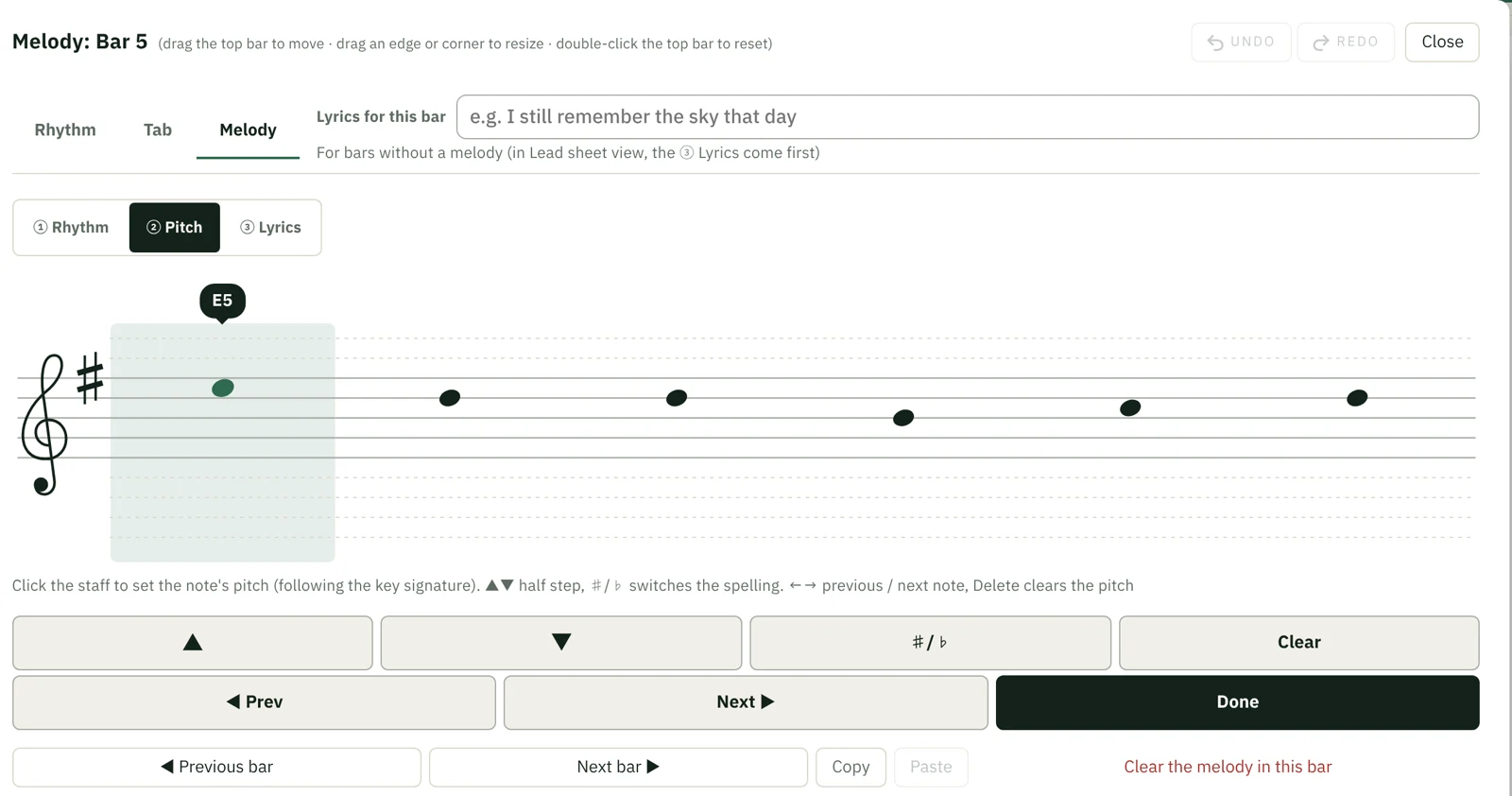
- ▲ ▼ move the note a half step (on a phone, hold to keep going). ♯/♭ switches the spelling (for example, F♯ ↔ G♭).
- On a Mac, ←→ go to the previous or next note, and Delete clears the pitch.
- To give only the melody a different rhythm, edit it in "① Rhythm" (the rhythm then belongs to the melody only). "Use the same rhythm as the tab" takes you back at any time.
- If changing the rhythm leaves fewer notes, the pitches and lyrics you entered stay in note order.
- When you transpose, the melody moves too.
- Notes without a pitch are shown as slashes on the chart (or not shown).
- Not yet supported: melodies with two or more notes at once (chords or two voices), and two-staff writing like piano music.
Chord charts with lyrics (lyrics per bar)
Even without a melody, write in "Lyrics for this bar" at the top of the rhythm editor and the lyrics appear under that line (up to 80 characters per bar). Useful when you sing and play, or as a reference on a session gig. They show with any notation: tab, staff or none.

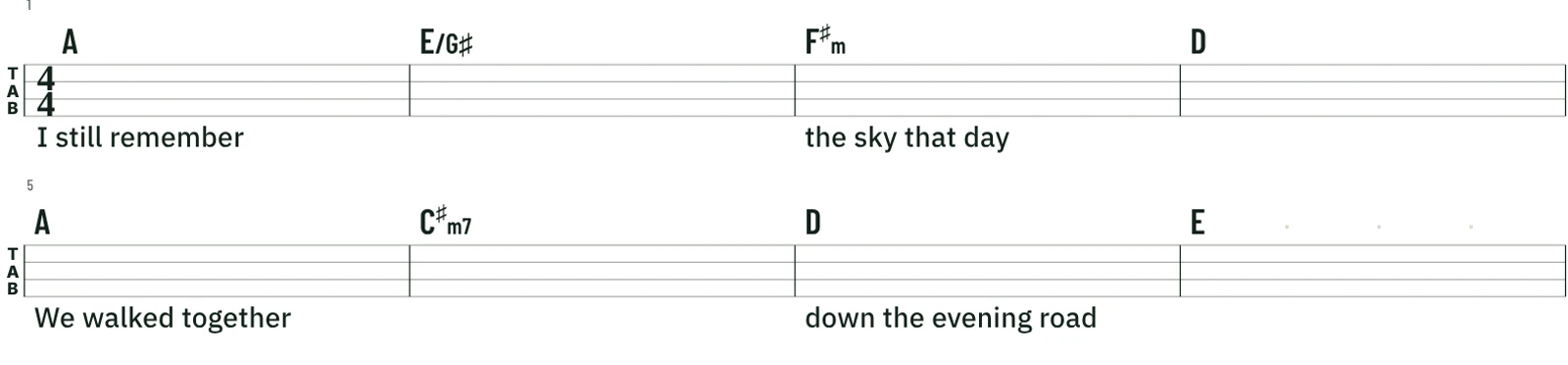
- In Lead sheet view, bars that have "③ Lyrics" show those instead, lined up with the notes.
- Lyrics move with the bar when you copy bars, undo, share a link, save a PDF or open Performance mode.
Sections and marks#
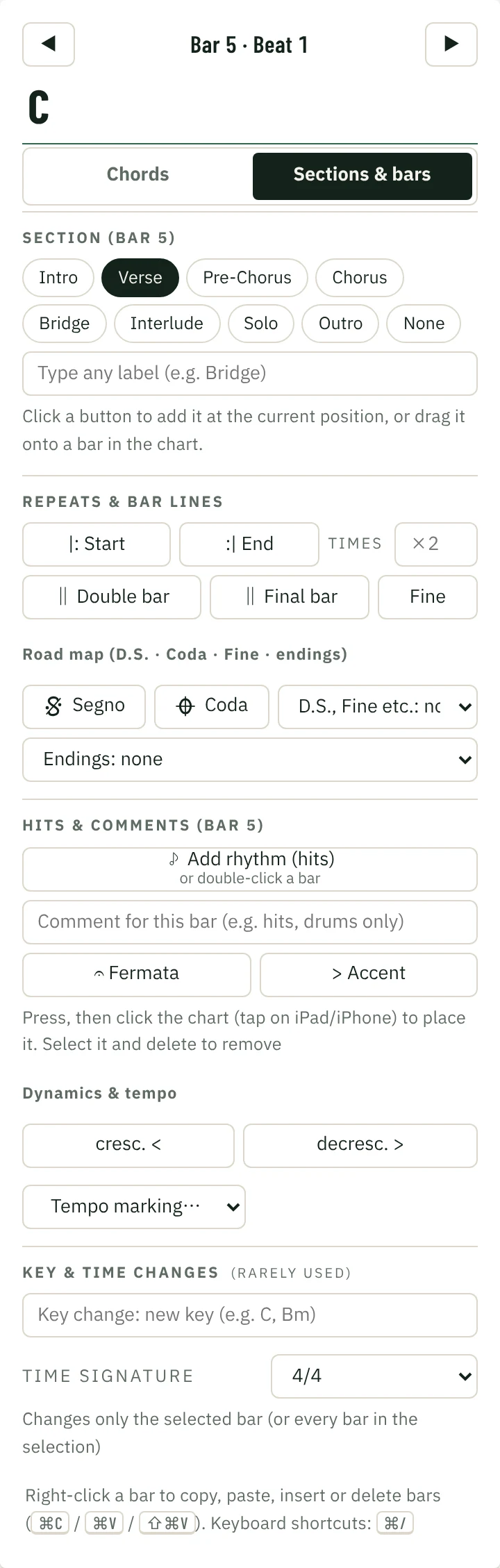
From section labels to repeats, D.S. and Coda. You'll find them on the "Sections & bars" tab of the input panel.
- Choose a barPress the bar you want to mark.
- Press a buttonPress a section label, |: :|, final bar line, D.S. and so on to add it.
- Fix it on the chartDrag a mark to move it; select it and press "Delete" to remove it.
More
| Group | What's in it |
|---|---|
| Section | Intro, Verse, Pre-Chorus, Chorus, Bridge, Interlude, Solo, Outro, or type any label |
| Repeats & bar lines | |: :| (with a count such as ×2), double bar line, final bar line, Fine |
| Road map | Segno, Coda, D.S., D.C., To Coda, 1st/2nd endings |
| Hits & comments | The rhythm editor, a comment for the bar, fermata, accent |
| Dynamics & tempo | cresc. < / decresc. >, tempo markings such as rit., a tempo and ♩= |
| Key & time changes | A key change mark, a time signature for just that bar |
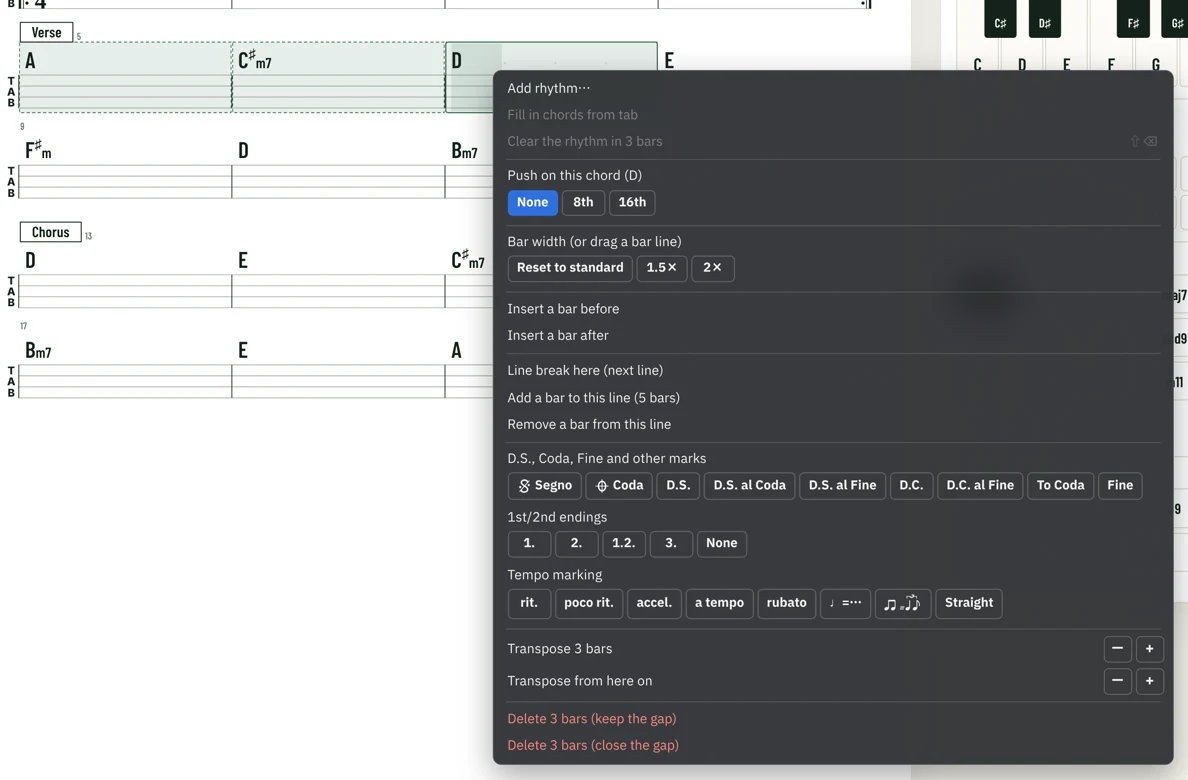
- Right-click (long-press) a bar for one menu, in this order: rhythm → push → bar width (Standard / 1.5× / 2×) → insert bars → line (line break, bars per line) → marks → transpose → delete. On a Mac, line breaks and inserting or deleting bars are done from here.
- To copy and paste on a Mac, use the keys (⌘C, ⌘V). On iPad and iPhone, they are in the long-press menu under “transpose”. Undo is ↶ at the top.
- Bar widths don't change with chord names or tab numbers, so bar lines line up. If two chords overlap, drag one to move it, or drag the bar line to change the width of the two bars beside it (double-click to reset; on iPad and iPhone, select a bar and drag the grip on its line). “Bar width” in the menu also has 1.5×, 2× and Reset to standard.
- Fermatas and accents work like stamps. Press the button, then place as many as you like on the chart.
- For a pickup (a short first bar), use the right-click (long-press) menu on bar 1.
Edit, copy and paste bars#
Select, copy and paste bars just like text.
- Select a rangeDrag across the chart (with the mouse on a Mac, with your finger on iPad and iPhone).
- CopyOn a Mac, ⌘C. On iPad and iPhone, use "Copy" in the input panel or the long-press menu.
- PasteSelect the bar you want and press ⌘V ("Paste"). If you make a mistake, ↶ (⌘Z).
More
- "Insert & paste" (⇧⌘V) pushes the following bars back and slots the copied bars in.
- Copied bars can be pasted into another song too. For a whole section, use "Copy this section".
- Bars are added as you type. To add or remove bars in the middle, use the right-click (long-press) menu.
- With "Delete bar (keep the gap)", the following bars don't move up to the previous line.
- When the chart is zoomed in on iPad, press and hold briefly before you drag to select.
Chart settings and PDF#
Change the key, notation and number of lines, and save it straight to an A4 PDF.
- Open "Settings ▾"These are the chart settings. On iPhone they are in the "…" menu.
- Choose how it looksTranspose, notation (TAB 4–7, Staff, None), bars per line, lines per page and more.
- Save with "PDF (1 pg)"Pages break the same way as in the editor, and your annotations are included.

More
| Setting | What it does |
|---|---|
| Transpose / capo | In half steps. Your original chords are kept |
| Chord style | Auto / all ♯ / all ♭, maj7 / M7 / △7 and so on |
| Letters / Roman / Nashville | Show chords as letters (C G Am), Roman numerals (I V vi, with minor chords in lower case) or Nashville numbers (1 5 6m) |
| Chord size | Set the text size with a slider |
Page 1 has one line fewer than the other pages, to make room for the title (with 12 lines per page, page 1 shows "11 lines"). Use "12 lines ▾" at the top right of a page to change the number of lines on that page only (handy when you want a song to fit on one page).

Use it on stage#
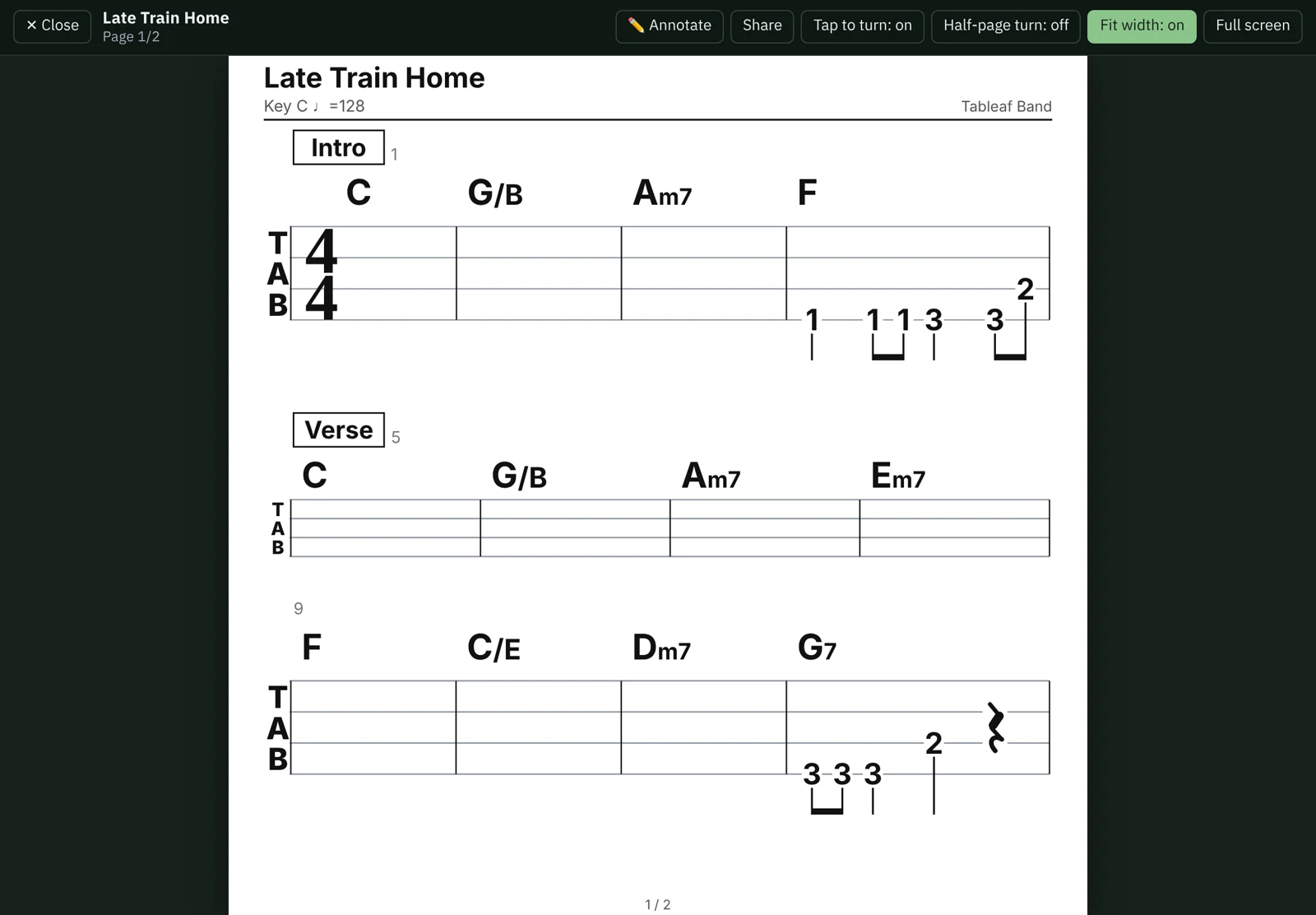
Open the chart you wrote with "▶ Perform" and turn pages straight from it.
- Press "▶ Perform"From the top bar of the editor, or from "View · Annotate · Perform" on the home screen.
- Turn pagesTap the right side of the screen, swipe left, use a Bluetooth pedal, or on a Mac press → or Space.
- Avoid accidentsIf you use a pedal, set "Tap to turn: off". Then an accidental tap won't turn the page (swiping still does).
More
- Half-page turn: shows the top half of the next page first, so you can see what's coming even at a page break.
- Full screen: hides the browser bars on Mac and iPad.
- A quick double press still turns only one page. The screen doesn't dim while you're performing.
- iPhone: held upright, "Phone view" fills the screen with large lines. The buttons at the top hide after a few seconds; tap the top of the screen to bring them back. A4 view shows it just like the printed page.
- Spread two fingers to zoom in.
Handwritten annotations#
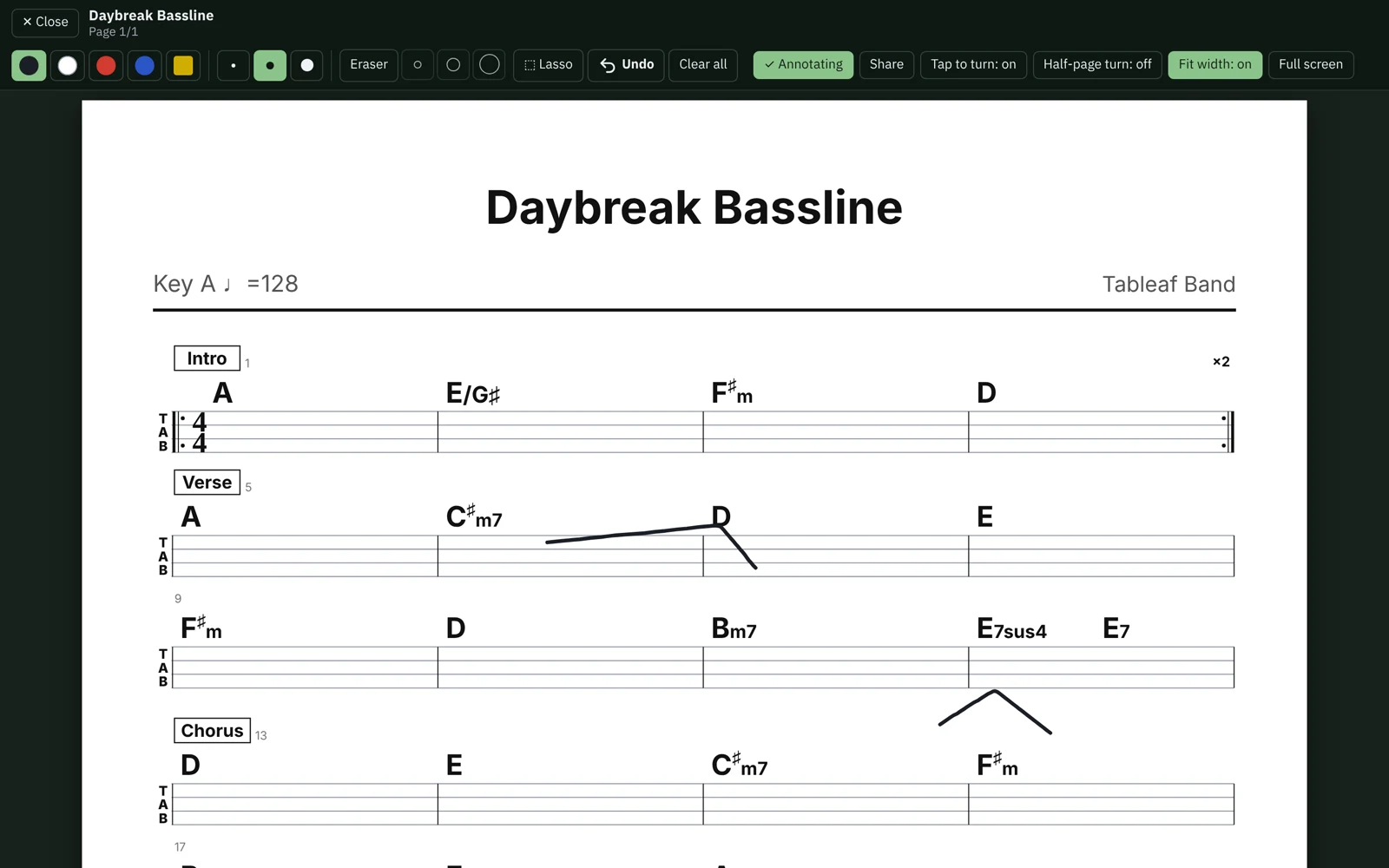
Write on the chart just like on paper. Annotations stick to their bars, so they stay in place when you edit the chart.
- Press "✏️ Annotate" in Performance modeViewing and writing are separate modes, so you won't leave stray marks.
- Choose a pen and writeFour colors plus a highlighter, in three widths. The eraser removes only what you trace over.
- Press "✓ Annotating" to finishYou're back to turning pages.
More
- Draw a box around annotations with "⬚ Select" to move, copy or delete them. You can paste them on another page or into another song.
- Once you write with an Apple Pencil, your finger no longer draws (your finger is for scrolling).
- When you write on an iPhone, it switches to A4 view automatically (so the marks line up with other devices).
- If you make a mistake, ↶ (⌘Z).
Sharing and setlists#
Send a whole setlist with one link. The people you send it to don't need to sign in, and it's free for them.
- Make a setlistUse "+ New setlist" to add songs, and drag ≡ to reorder them.
- Press "Share with your band"You get a link and a message to paste into your group chat (you need to be signed in).
- Edits arrive automaticallyWhen you edit a chart, your bandmates' screens update within a few seconds.
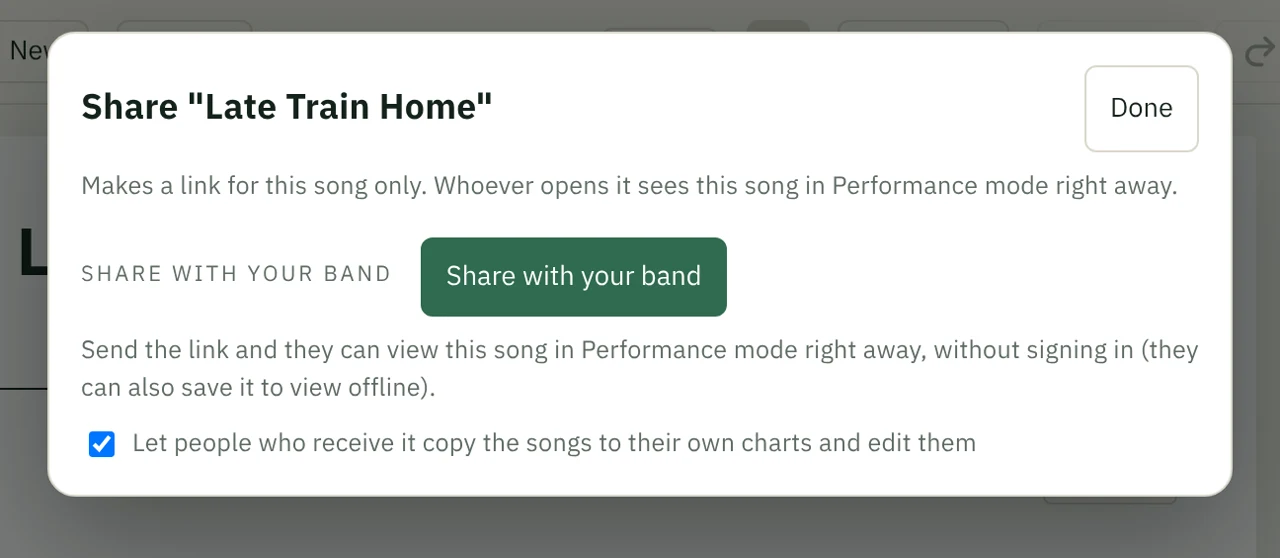
What the people you share with can do
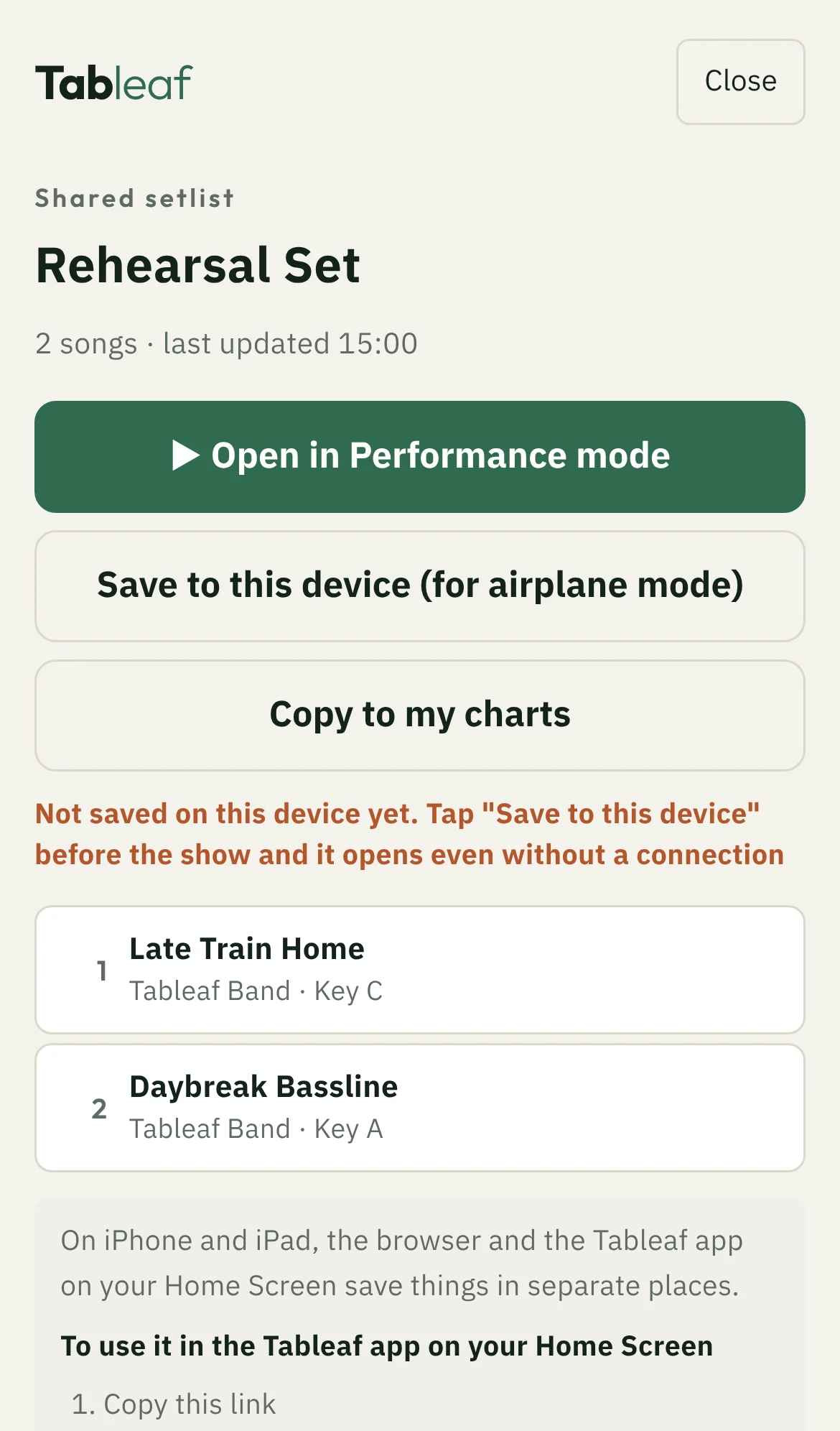
- Open the link and view it straight away in Performance mode.
- Press "Save for offline use" and every song opens even without a connection.
- Use "✏️ Note" for their own annotations. Your original chart doesn't change.
- Change only their own view with "Notation". Even if you shared it on a staff, a bassist can view it as TAB 4.
- If the link opens inside an app such as LINE or Instagram, choose "Open in browser" to switch to Safari or Chrome.
More
- To send a single song, right-click (long-press) its song card → "Share…".
- "Open in Performance mode" lets you turn pages straight through every song in the setlist. There's also "Export setlist PDF".
- You can add PDF charts with "+ Add PDF" and annotate them and turn pages too. PDFs are saved only on the device you added them on and are not included when you share.
Import and switch from other apps#
Charts you've made in another app can be imported into Tableaf, so you don't have to retype them song by song. You can also make a draft from a DAW MIDI file or a chord progression in text.
What you can import#
| What | File / how | What comes in | What doesn't (or needs fixing) |
|---|---|---|---|
| Files from other chord chart apps | A song file exported from that app | Chords, sections, repeats, time signature, D.S., Coda, Fine | Add the key and rhythm (hits) again after importing |
| Exports from other chord chart apps (playlists) | .html | Title, key, tempo, chords, form and so on. Playlists bring in several songs at once | Each app writes things differently, so check the result after importing |
| MusicXML (a common format that most notation software can export) | .musicxml / .xml / .mxl | Chord symbols, repeats, 1st/2nd endings, D.S., Coda, sections, time signature, key, tempo. NEW in 1.2 Bass and guitar notes go onto tab, and the vocal part becomes a lead sheet | Lyrics, second and lower voices, technique marks. Repeats are not written out; they come in as repeat marks |
| MIDI (DAW data) | .mid (several at once, for example piano and bass) | A draft with the chords and key worked out | Guitar tracks, bass tab, repeat signs |
| Chord charts in text | Copy and paste | Chords written like "| C G | Am |" or [C]. Lines such as [Verse] become sections | Lyric lines are not imported |
| PDF or photo charts | Give the prompt on the import screen to an AI chat assistant and paste back the text it returns | The chords and form the AI read | The AI can misread things, so always check the result |
| Tableaf files (backups) | .tableaf / .json | Everything in the song |
Steps#
- Export the chart as a file from the original appSee that app's help for how to export.
- In Tableaf, open "Song ▾" → "Import" → [Open a file]You can also drop the file onto the import screen. For MIDI, use [Open MIDI].
- Check the imported chart and fix anything that's offIt opens as a new song. Your existing songs are never overwritten.
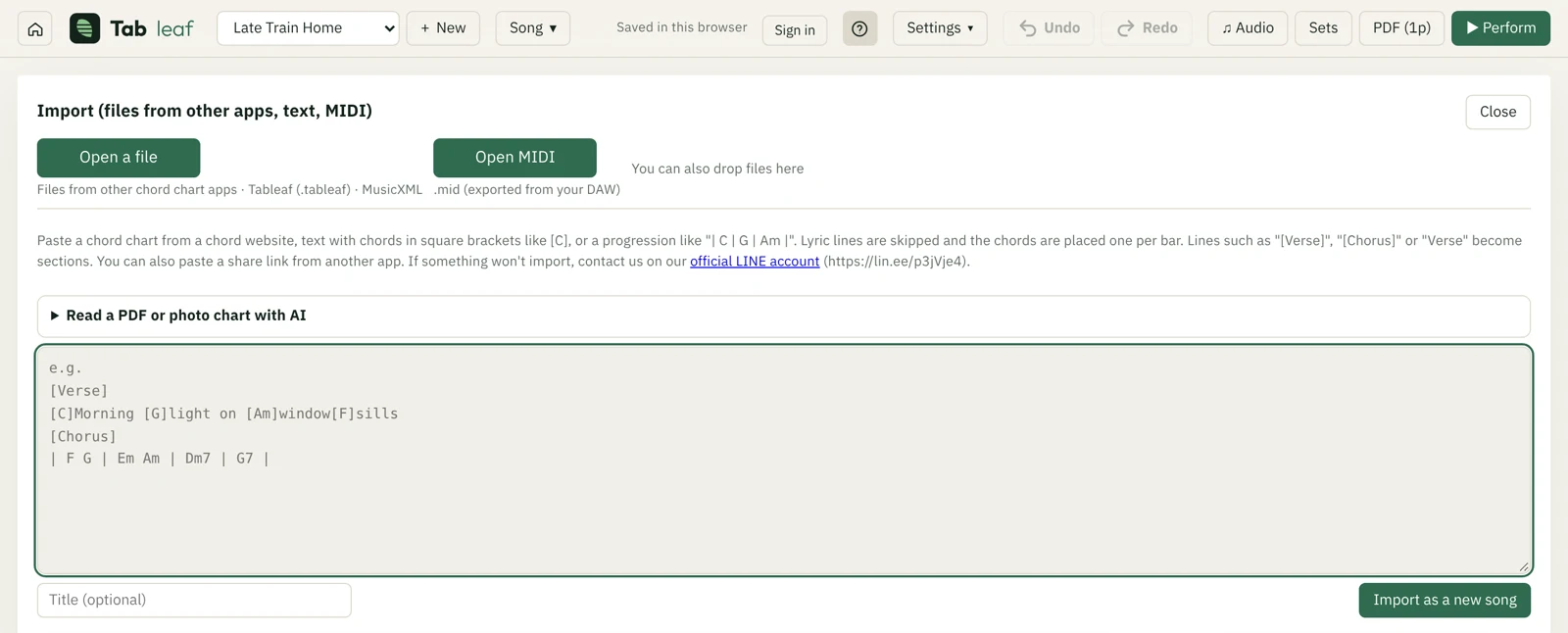
Making a chart from MIDI#
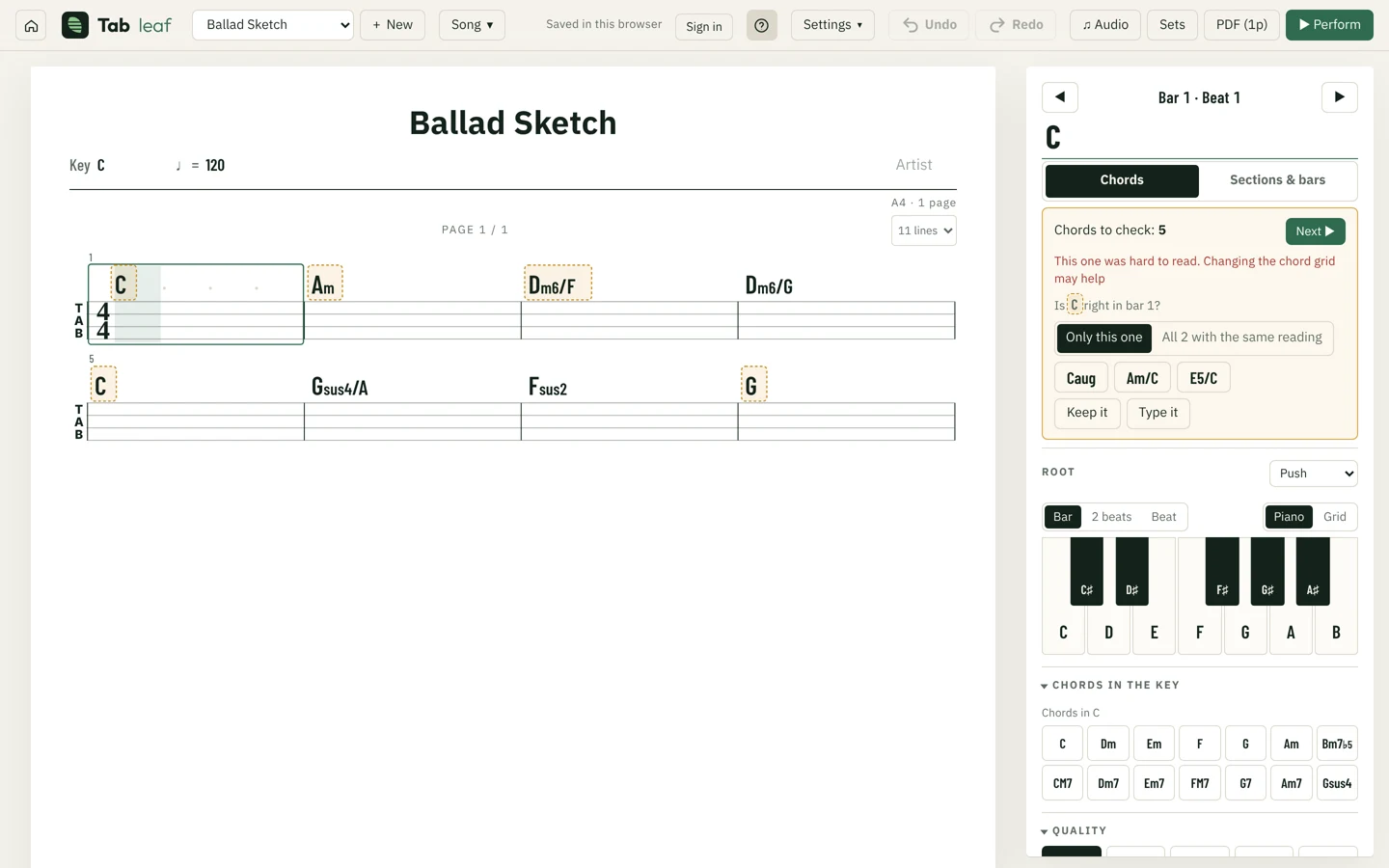
- Check the preview and press [Import]. A draft opens with the chords and key worked out. Chords it wasn't sure about are shown with a dotted outline; pick from the suggestions to finish.
- If the chords don't fit, review each track's role (chords / lowest note / don't use) and the "Chord grid".
- When you export from your DAW, put each instrument in a single clip from the start of the song to the end, so everything lines up at the top.
If something won't import#
- Some formats can't bring in the key, rhythm (hits) or lyrics. Check "What doesn't" in the table above and add them after importing.
- Marks Tableaf can't write (such as technique marks) are not imported. If you need them, add them by hand as annotations in Performance mode.
- Unusual chord spellings may not come in correctly. Retype those chords after importing.
- If you're stuck, email info@eureka-e.com. Send us the file and we'll take a look.
Switching offer#
When you import a file from another chord chart app or a MusicXML file, a "Switching offer" code appears on the account screen. Enter it on the one-time purchase checkout to buy for ¥3,980 (JPY). While Founder places (first 100 buyers, also ¥3,980 and the same as the one-time purchase) are still available, we recommend that instead. For prices, see the pricing section on the top page.
Account and data#
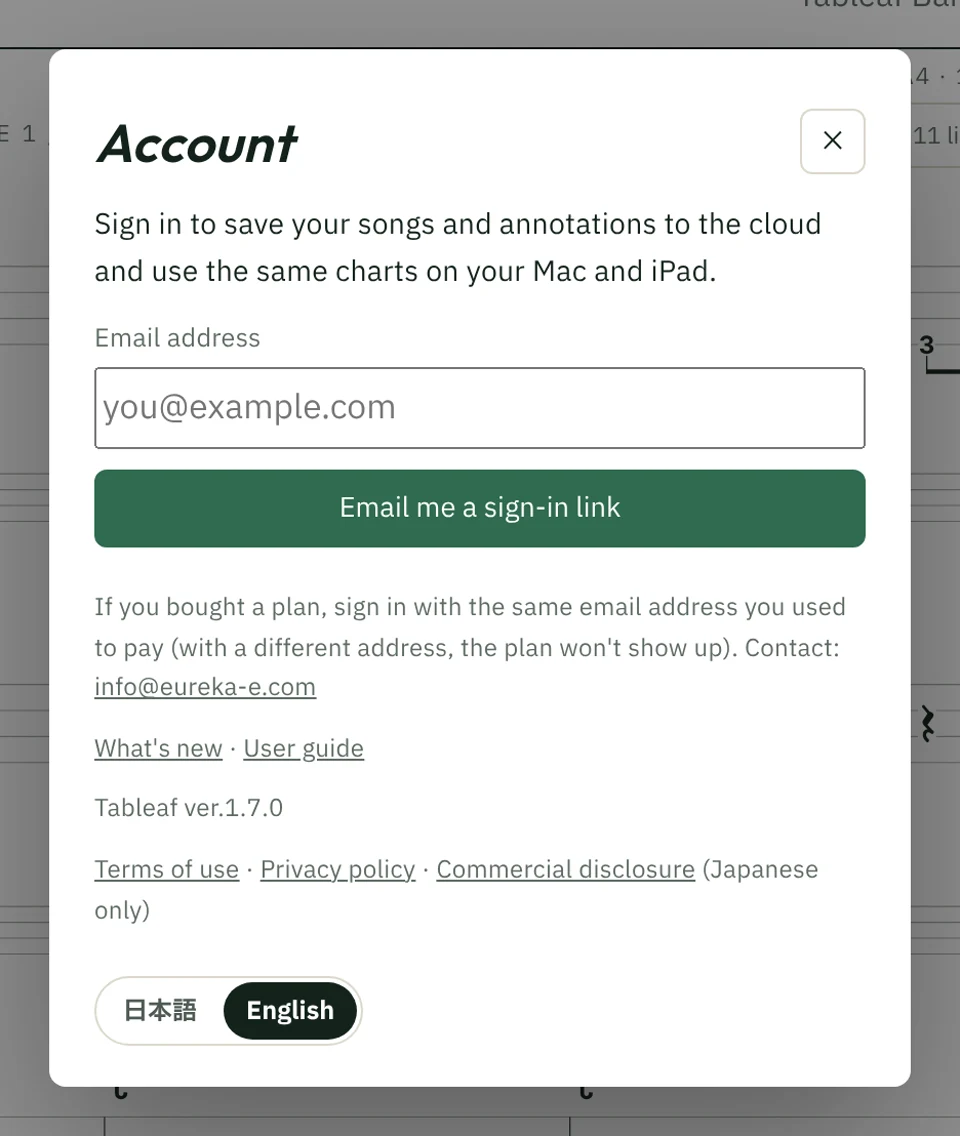
Sign in and your songs and annotations are saved to the cloud, so you get the same charts on every device.
- Press "Sign in" on the home screenEnter your email address and press "Email me a sign-in link". No password needed.
- Enter the verification codeEnter the code from the email and press "Sign in with code".
- Use the same email on your other devicesSign in with the same email address and everything syncs automatically.
Plans and invite codes
- The free plan includes all features for up to 5 songs. Songs from the 6th on are kept and can be viewed (they're skipped in Performance mode).
- Buy from the account screen. For prices, see the pricing section on the top page. Your plan is linked to the email address you used to buy.
- Yearly and monthly plans can be canceled at any time from "Manage billing". Your songs stay even if you go back to the free plan.
- Invite codes: sign in, open "Have an invite code?", enter the code and press "Use code".
Saving, backups and updates
- Without signing in, your songs are saved only in that device's browser.
- In the Home Screen app on iPhone and iPad, sign in with the verification code rather than the link in the email.
- "Song ▾" → "Export all songs (backup)" backs up every song in a single file.
- New features are listed in the "What's new" bar on the home screen and under "What's new" on the account screen.
Keyboard shortcuts#
On a computer you can write a whole chart from the keyboard. Here are the ones you'll use most. In the app, ⌘/ (Ctrl/ on Windows) shows the full list.
Entering chords#
| To do this | Mac | Windows | Notes |
|---|---|---|---|
| Chord root | A–G | A–G | Moves on to the next position |
| ♯ / ♭ | # / - | # / - | Added to the chord you just entered |
| Minor | m | m | |
| Major | ⇧M | ShiftM | |
| Seventh | 7 | 7 | After m it's m7; after ⇧M it's maj7 |
| Slash chord (bass note) | / | / | Then type the bass note |
| No chord (N.C.) | N | N | Typing "N.C." works too |
| Another chord in the same bar | , | , | |
| Delete a chord | delete | Backspace / Delete | |
| Clear the rhythm in a bar | ⇧delete | ShiftBackspace | The chords stay |
Moving and selecting#
| To do this | Mac | Windows | Notes |
|---|---|---|---|
| Next bar | return | Enter | |
| Forward / back one beat | space, → / ← | Space, → / ← | |
| Line above / below | ↑ / ↓ | ↑ / ↓ | |
| Previous / next page | fn↑ / fn↓ | PageUp / PageDown | |
| Select a range of bars | ⇧+click | Shift+click | Dragging works too |
| Deselect / stop placing stamps | esc | Esc |
Copy and paste#
| To do this | Mac | Windows | Notes |
|---|---|---|---|
| Copy | ⌘C | CtrlC | The selected bars. If a section label is selected, the whole section |
| Paste (overwrite) | ⌘V | CtrlV | |
| Insert & paste | ⇧⌘V | CtrlShiftV | The following bars move back |
| Copy a mark and place it | option+drag | Alt+drag |
Editing#
| To do this | Mac | Windows | Notes |
|---|---|---|---|
| Undo / redo | ⌘Z / ⇧⌘Z | CtrlZ / CtrlShiftZ | |
| Delete the selected range, mark or section label | delete | Backspace / Delete | |
| Rename a section label or comment | Double-click | Double-click | |
| Open the rhythm editor | Double-click a bar | Double-click a bar | |
| Bar menu | Right-click | Right-click | Long-press on iPad |
| Show the keyboard shortcuts | ⌘/ | Ctrl/ |
Rhythm editor (rhythm, tab and melody)#
| To do this | Mac | Windows | Notes |
|---|---|---|---|
| Undo / redo what you entered in the rhythm editor | ⌘Z / ⇧⌘Z | CtrlZ / CtrlShiftZ, CtrlY | |
| Copy / paste this bar's rhythm | ⌘C / ⌘V | CtrlC / CtrlV | Chords and sections stay as they are |
| Tab: choose a string | The string name (G D A E B), ↑↓ | Same | On 6- and 7-string tab, E is the lowest string |
| Tab: enter a fret number | 0–9 | 0–9 | For two digits, type them in a row |
| Tab: previous / next cell | ← →, space | ← →, Space | |
| Tab: delete a number | delete | Backspace / Delete | |
| Melody: previous / next note, clear the pitch | ← → / delete | ← → / Backspace | In "② Pitch" |
| Lyrics: next / previous note | return, tab / ⇧tab | Enter, Tab / ShiftTab | In "③ Lyrics" |
| Close the rhythm editor | esc | Esc |
Viewing and Performance mode#
| To do this | Mac | Windows | Notes |
|---|---|---|---|
| Next page | → ↓ space return | → ↓ Space Enter PageDown | Page-turner pedals work as these keys |
| Previous page | ← ↑ | ← ↑ PageUp | |
| Undo the last annotation | ⌘Z | CtrlZ | |
| Copy / cut / duplicate the selected annotations | ⌘C / ⌘X / ⌘D | CtrlC / CtrlX / CtrlD | |
| Paste / delete annotations | ⌘V / delete | CtrlV / Delete | |
| Close Performance mode | esc | Esc | In full screen, the first press exits full screen |
Home and song list#
| To do this | Mac | Windows | Notes |
|---|---|---|---|
| Search songs | ⌘K | CtrlK | On the home screen |
| Select songs one by one / a run of songs | ⌘+click / ⇧+click | Ctrl+click / Shift+click | |
| Delete the selected songs | delete | Delete | You're asked to confirm. You can still undo for a short while afterwards |
| Deselect | esc | Esc |
What's new#
Changes to the app, newest first. In the app, you can also see them under "What's new" on the account screen.
Version 1.11.0 · Nov 22, 2026
- Bar widths no longer change with long chord names, rhythms or tab numbers, so bar lines line up down the page. Chords are no longer made smaller automatically: if two overlap, lower “Chord size” in the chart settings or drag one to move it
- Drag a bar line to change the width of the two bars beside it (double-click to reset; on iPad and iPhone, select a bar and drag the grip on its line). The bar menu also has 1.5×, 2× and Reset to standard
- In songs with a key change, chords use the ♯ or ♭ of the key in that bar (the keyboard and the key's chords follow it too). Fixed pasted bars taking on the time signature or key of the bar before them
Version 1.10.3 · Nov 22, 2026
- Fixed the top button bar shifting (and moving the chart up and down) while typing chords when signed in
Version 1.10.2 · Nov 21, 2026
- Chord suggestions from tab no longer call a shape sus2 or sus4 when its 3rd is played (e.g. Gsus2/B → Gadd9/B), and minor add9 chords (such as Cmadd9) are now suggested
Version 1.10.1 · Nov 21, 2026
- Chord names in the rhythm window now use ♭ and ♯ like the chart (transpose, capo and degrees are applied). Suggested chord chips no longer touch each other on iPhone
Version 1.10.0 · Nov 21, 2026
- Enter notes on two or more strings at once in tab and a chord name (such as Am7) is suggested above that beat. Tap it to add the chord (tuning and capo are taken into account)
- Use “Fill in chords from tab” in the bar menu to add chords to every empty beat at once (undo with ↶ in one step)
Version 1.9.0 · Nov 21, 2026
- Added “Into next bar: Tie / Slur” to the rhythm window: write an anticipation without entering anything in the next bar
- Long chord names (such as m7 on beat 4) now rarely change the bar length (the text gets a little smaller first)
- Choose whether the clef and key signature are written on every line or on the first line only (“Clef on every line” next to the staff option)
Version 1.8.2 · Nov 21, 2026
- On the staff, the clef and key signature are now written on the first line only (and again where the key changes)
Version 1.8.0 · Nov 20, 2026
- Tableaf is now available in English (switch the language at the bottom left of Home or on the Account screen)
- Added Nashville numbers (1 · 4 · 5m · 2m7) as a chord display option (Chart settings → Chord style)
Version 1.7.0 · Nov 19, 2026
- On a computer, you can now load an audio file (mp3, m4a, wav, etc.) for each song and play it right in the chart editor ("♫ Audio" at the top)
- ⌥K (Alt+K on Windows) plays and stops; ⌥J and ⌥L go back and forward 3 seconds. You can also slow it down without changing the pitch, and set an A–B loop
- Audio files are saved only on this device (they aren't uploaded to the cloud or included in share links). Available on the free plan too
Version 1.6.0 · Nov 18, 2026
- You can now copy a chart from a share link to your own songs and edit it ("Copy to my charts" on the shared screen; for a single-song link, "Copy & edit" in Performance mode)
- When sharing, you choose whether people can copy and edit it, with "Let people who receive it copy the songs to their own charts and edit them"
- A copied chart counts as one of your songs (up to 5 on the free plan). The original chart stays as it is
Version 1.5.0 · Nov 18, 2026
- When the chart's notation is set to "None", you can now make a chords-only chart without rhythms (Chart settings → "Show rhythm")
- People who receive a share link can also choose "Chords + rhythm (no numbers)" or "Chords only" under Notation
- This only changes how the chart looks on your own screen. The shared chart and its rhythm data stay the same
Version 1.4.0 · Nov 18, 2026
- Chord names within a line are now shown at the same size
- Bars in 5/4, 6/4 and similar time signatures are now drawn longer to match the number of beats
- In Chart settings, you can now choose not to start a new line at each section label
Version 1.3.3 · Nov 18, 2026
- When the chart fills the screen width (in landscape, for example) and the rest fits on one screen, one tap now scrolls to the bottom (the next tap turns to the next page)
Version 1.3.2 · Nov 18, 2026
- Fixed the chart widths in "Recent songs" on the home screen sometimes being uneven on iPad
Version 1.3.1 · Nov 17, 2026
- Added M9 and m11 to the chord quality options
Version 1.3.0 · Nov 17, 2026
- On iPhone and iPad, the chords used in the song now appear above the keypad (most used first; tap one to enter it)
- No need to type the same chord or slash chord from scratch again and again
Version 1.2.3 · Nov 17, 2026
- On iPhone and iPad, the slash ("/") for slash chords now sits right below the keypad (no need to scroll down)
Version 1.2.2 · Nov 17, 2026
- Importing notes from MusicXML (to tab and lead sheet) is now available on the free plan
Version 1.2.1 · Nov 17, 2026
- Made the explanations on the Import screen clearer, and added where to ask when a file can't be imported
Version 1.2.0 · Nov 16, 2026
- You can now import notes from staff notation (MusicXML) and have them placed on tab automatically
- Just pick the bass or guitar part. Vocal parts can also go into a lead sheet
- Importing notes (tab and lead sheet) is a paid plan feature. You can fix anything that comes out differently, as usual
Version 1.1.5 · Nov 15, 2026
- Rhythms now show on the chart in bars where you entered a melody-only rhythm
Version 1.1.4 · Nov 15, 2026
- In melody view, notes without a pitch no longer show a "?"
Version 1.1.1 · Nov 15, 2026
- When entering melody pitches, you can now tap to select the notes before and after too
Version 1.1.0 · Nov 15, 2026
- You can now write lead sheets with lyrics (Notation → "Lead sheet")
- In the Melody tab of the rhythm editor, tap the staff to enter notes
- You can write lyrics for each bar. They also appear under the lines on tab, staff and chords-only charts
Version 1.0.0 · Nov 14, 2026
- Tableaf Version 1.0.0 is out. Thank you for using it
- Tab charts can now show the tuning in one line at the top (Chart settings → Tuning)
- On phones, A4 page breaks now show as dotted lines too
Nov 13, 2026
- "My charts" is here. Search the songs you've made by title or artist, and sort them
- Section labels can now be shown in English (Intro, A…) or Japanese style
- You can now import files from other chord chart apps and MusicXML files (Song ▾ → Import)
Nov 12, 2026
- The user guide is ready. Open it from "User guide" on the Account screen (a PDF is also available)
Nov 12, 2026
- On iPad, you can now select several bars just by swiping across them with a finger
- Added Undo and Redo buttons to the rhythm editor
- In the rhythm editor, you can copy and paste just the rhythm
Nov 11, 2026
- Whole notes on tab are now written the standard way: the fret number is circled with an oval
- ⌘Z / Ctrl+Z now works in the rhythm editor (it undoes only what you entered there)
- Added a demo you can try without signing up, and a prompt for reading PDF or photo charts with AI
Troubleshooting#
Common questions. If they don't solve it, see "Contact" below.
My devices don't show the same charts
Check that you're signed in with the same email address on both. On iPhone and iPad, Safari and the Home Screen app also save things in separate places.
Can I use it at a venue with no signal?
Yes. If the setlist shows "✓ Ready offline", every song will open (see Install it as an app).
Pages turn on their own
In Performance mode, set "Tap to turn: off". Pages then turn only by swiping, with a pedal or with the arrow keys.
I deleted something by mistake
Press ↶ (⌘Z) to undo. For annotations, use ↶ in Performance mode.
I bought a plan but it hasn't changed
Check that you're signed in with the same email address you used to buy, then reload the page.
I can't sign in from the Home Screen app
Enter the verification code instead of using the link in the email.
Do the people I share with have to pay?
No. They can view it for free without signing in.
My finger draws lines
Once you write with an Apple Pencil, your finger no longer draws.
Chords overlap
Make the "Chord size" smaller in "Settings ▾", or use fewer bars per line.
The new version doesn't show up
Close the app completely and open it again.
What happens to my charts if the service ends?
You can export your charts as PDFs or files at any time. If we ever close the service, we'll announce it in advance and give you time to export.
Contact#
- Questions about using the app: email info@eureka-e.com (Eureka Entertainment Inc.)
- Bug reports and requests: the "Feedback" button in the app
Try it now
All features are free for up to 5 songs, with no time limit. There is also a demo you can try without signing up.
Questions?
Feel free to get in touch by email. Questions about using the app, bug reports and requests are all welcome.